Why the background prints on a t-shirt
A printer cannot tell the part you want from the part you do not. It prints every pixel in the file, so a white or coloured box behind a logo comes out as a rectangle on the shirt, like a sticker someone forgot to peel. A PNG with a transparent background prints only the design. A JPG cannot be transparent, so its background always prints unless you remove it.
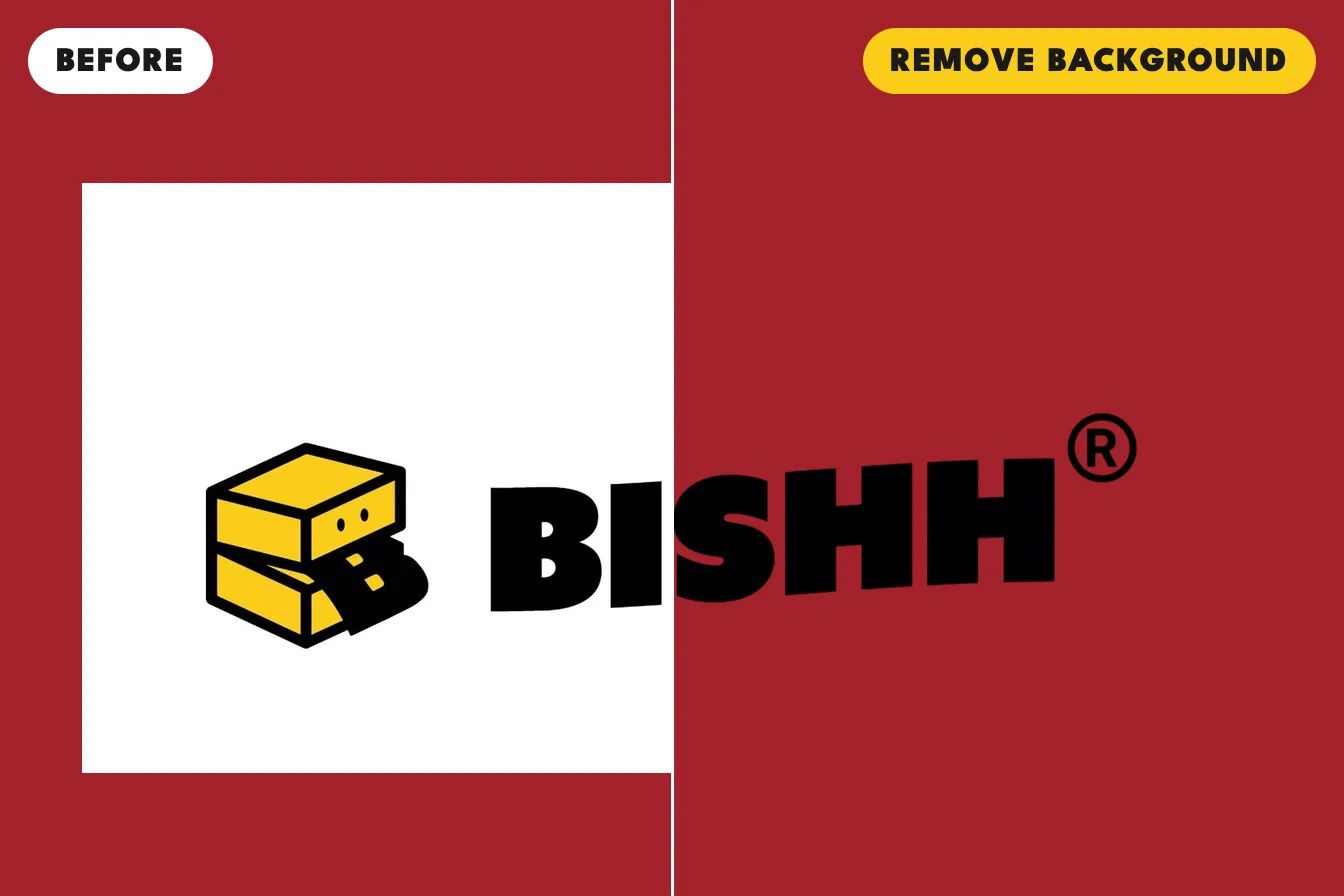
How to remove a background in Custom Lab
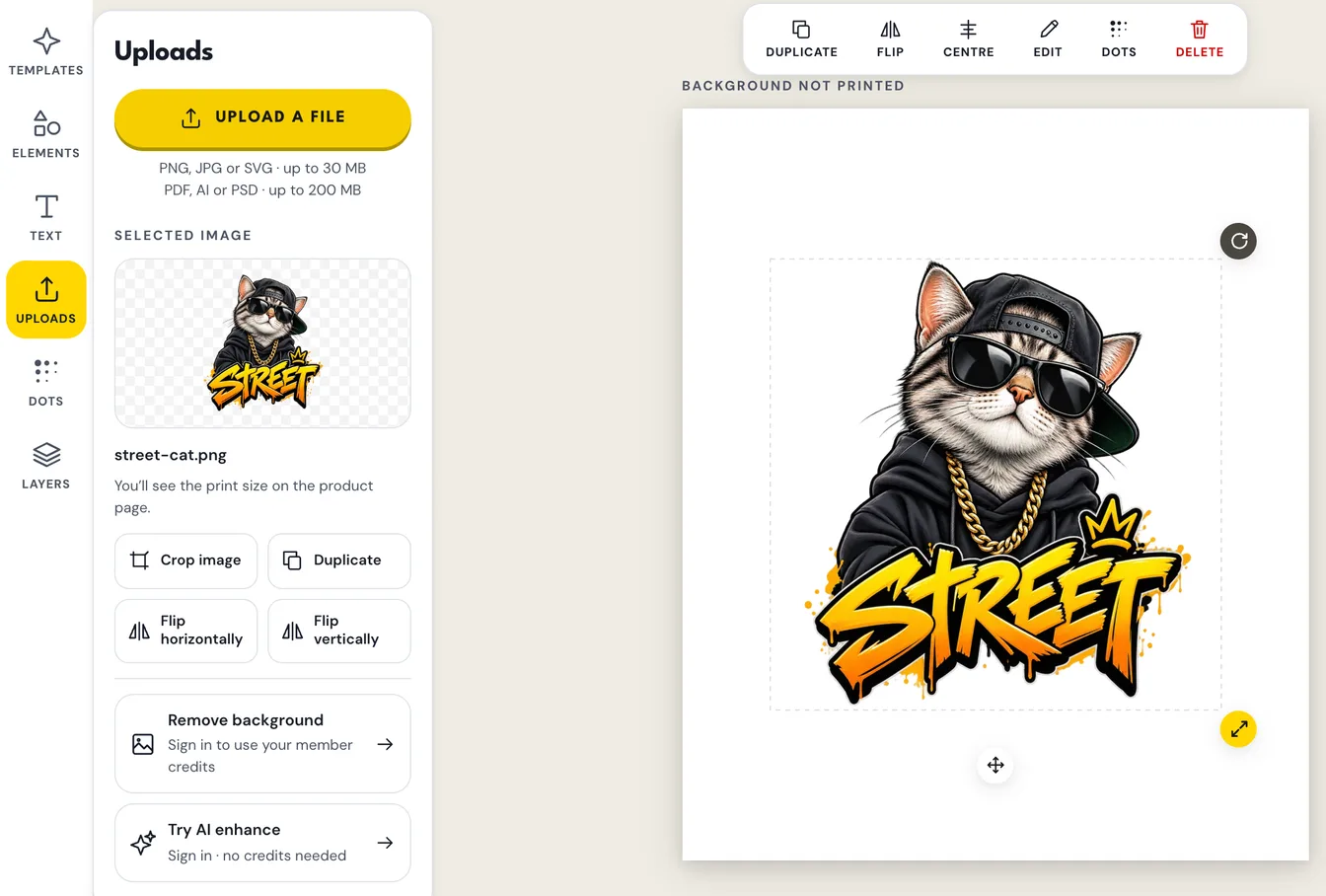
- Open Custom Lab and sign in. Background removal uses member credits, so it needs a free account.
- Tap Uploads and add your photo or logo.
- Select the picture and tap Remove background. It takes a few seconds.
- Check the edges. Tap Touch up edges to paint back anything the AI took away, or to erase anything it left behind.
- Tap Save & choose product, pick your garment and colour, and look at the preview before you pay.
How many background removals do I get?
Every member gets free background removals each month: 4 on the free Bronze tier you start on when you sign up, and up to 12 a month on Platinum. One removal uses one credit. If you tap Restore original and remove the background again, no extra credit is used, and a removal that fails gives its credit back.
Tidy the edges with Touch up
AI background removal works best on people, pets, products and logos with a clear outline. It is less sure with hair against a busy background, glass, or a subject the same colour as what is behind it. Touch up edges opens your picture full screen with two brushes: Restore paints back parts the AI removed, and Erase removes parts it kept. Make the brush smaller for fine areas such as fur or fingers. If you change your mind, Restore original brings back the picture you uploaded.
Why clean edges matter in print
Soft, see-through edges print pale or patchy, because heat press ink is either printed in full or left clear. A clean cutout gives the print a crisp outline. The product designer also warns you when 5% or more of a picture is see-through. A picture you upload yourself is never changed without asking: when parts of it are see-through, you choose what to do.
When to use the Dots tool instead
If your design is a glow, a neon sign or fire on a black background, removing the background would remove the glow as well. The free Dots tool has a Black background look that drops the black and keeps the glow as halftone dots, which print cleanly on a dark shirt.
Tips for a cleaner cutout
- Start with the largest photo you have. A copy forwarded on WhatsApp is smaller and softer.
- A subject that stands out from its background, such as a dark cat on a light floor, gives the cleanest edge.
- Keep the whole subject in the photo. The AI cannot add an ear or a hand that the photo cut off.
- For a logo, ask your designer for a PNG with a transparent background, or the original AI or PDF file. That is cleaner than any cutout.